
If you've spent any time in automated trading, you've probably seen the same story play out again and again.
A vendor launches a "revolutionary" Expert Advisor, showcases an incredible backtest, and promises exceptional returns. Impressed by the results, traders purchase the EA, install it with the default settings, and expect the same performance in live markets.
A few weeks later, they discover that the results don't match the marketing claims and start asking the same question: what went wrong?
In most cases, the answer is simple. An EA performs only as well as the settings behind it.
Even a well-designed trading robot can struggle when traders run it with poorly optimized parameters. Market conditions change, volatility shifts, and settings that performed well during historical testing may no longer suit the current market environment.
That's why TradingBotLab created the Forex EA Store.
Instead of simply offering trading robots, TradingBotLab provides professionally optimized and thoroughly tested .set files for specific market conditions and trading environments. Traders can also review live performance data before making a purchase, allowing them to evaluate a strategy with greater confidence.
In this guide, you'll learn how to navigate the store, analyze strategy performance, and securely access your files after checkout.
1. Finding the Right Forex EA and .Set File
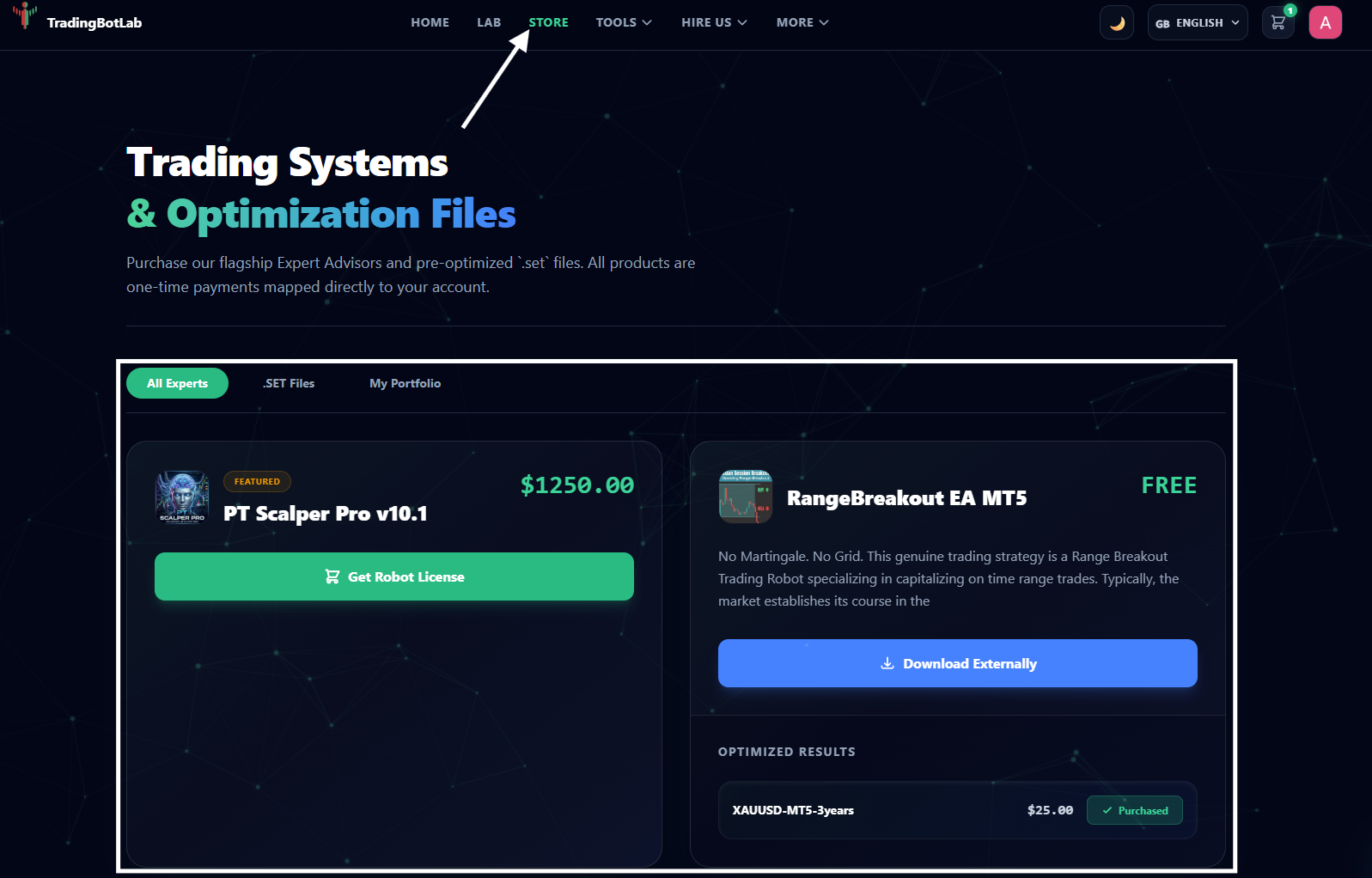
When you enter the Store section, you'll find an organized marketplace containing available Forex EA and their optimized parameter sets.
Whether you're interested in breakout systems, recovery strategies, martingale variations, or other automated approaches, everything is arranged to make browsing easy and straightforward.
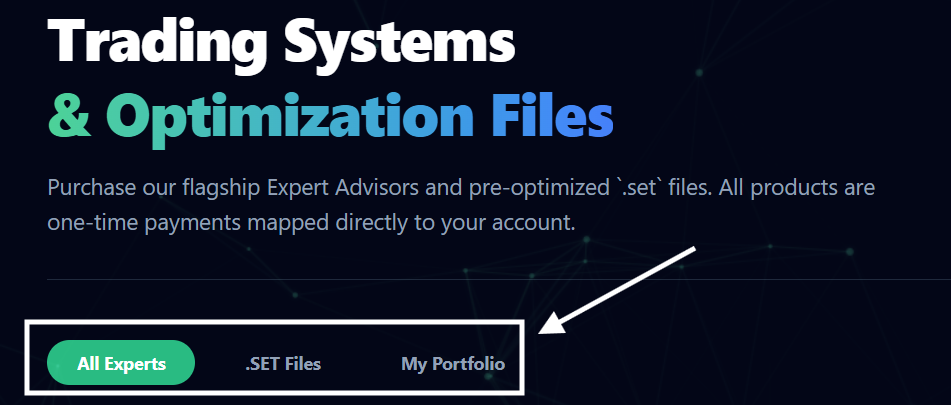
The store is divided into three main sections:
Main Store
This is where you'll find all available products in one place. It's the best starting point if you want to browse the full catalog and discover newly added strategies.
Set Files
Looking specifically for optimized settings?
The Set Files section lets you filter products and quickly identify those Forex EAs that have proprietary TradingBotLab .set files available. This makes it easy to find the exact configuration you're searching for without sorting through the entire marketplace.
My Portfolio
Think of this as your personal download library.
Every EA and .set file you purchase is stored securely inside your account. Whenever you need access to your files, simply visit My Portfolio and download them again.
A Quick Note About Free EAs
Many traders are surprised to learn that some Expert Advisors are completely free.
For example, traders can download popular robots such as the Range Breakout EA directly from the MQL5 Marketplace without paying for the EA itself.
In these cases, TradingBotLab provides the official download link to the EA and offers optimized .set files separately. Our team develops and tests these settings to help the strategy adapt more effectively to live market conditions.
2. Check Performance Before You Buy
Many traders make the mistake of buying products based solely on marketing promises.
While backtests can provide useful insights, they don't always show how a strategy performs in current market conditions. To make smarter decisions, traders should review live performance data before investing in any strategy.
TradingBotLab makes this process simple.
Just visit the Lab section and choose the strategy you want to analyze.
For example, if you're considering the Range Breakout Gold set, you can access a synchronized live account that runs the exact configuration. By monitoring real-time results, you can evaluate how the strategy performs in live market conditions instead of depending entirely on historical backtests.
You'll be able to review key metrics such as:
Current balance and equity
Drawdown levels
Win rate and profit factor
Equity growth curves
Active and historical trades
Having access to this information helps you make a more informed decision and better understand how a strategy is behaving under current market conditions.
3. Secure Checkout with Binance Pay
Once you've found the .set file you want, purchasing it is quick and straightforward.
TradingBotLab uses Binance Pay to provide a fast, secure, and globally accessible payment experience.
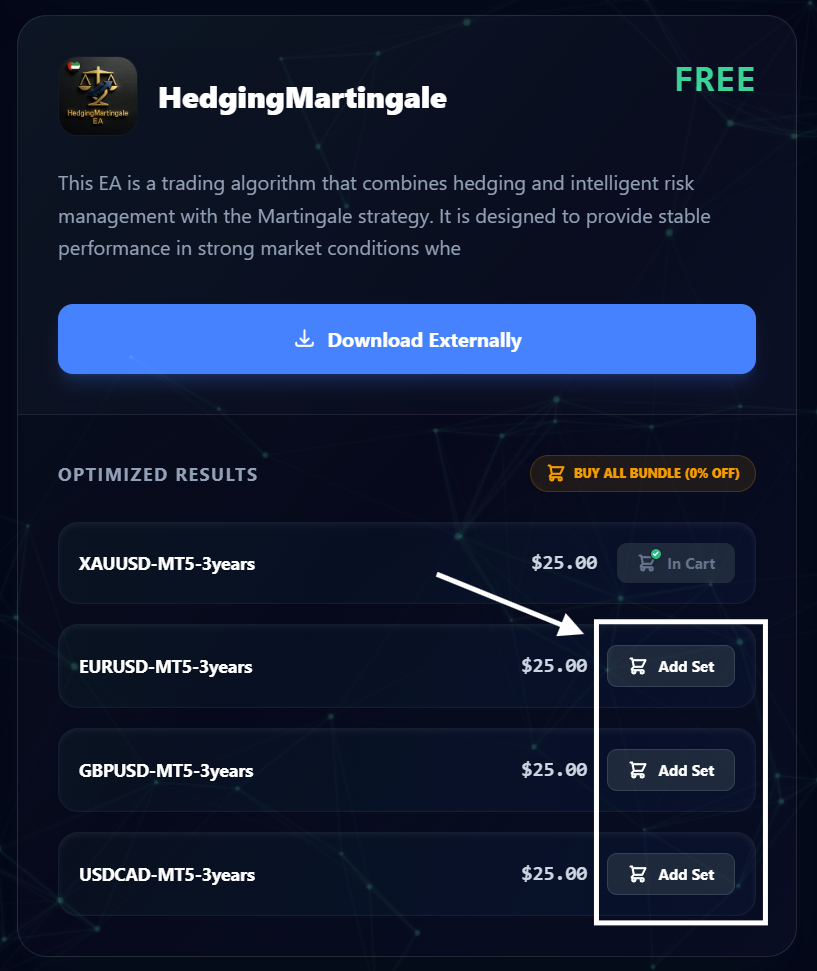
Step 1: Add the Product to Your Cart
Select your preferred .set file and add it to your shopping cart.
Step 2: Apply Available Discounts
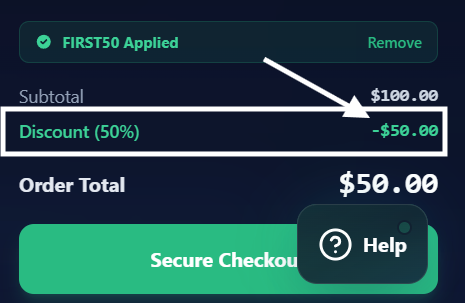
If there's an active promotion, enter your coupon code before proceeding to checkout.
For example, early users may be eligible for the FIRST50 discount code, which provides a 50% discount. If a code no longer works, simply contact support to see if any current promotions are available.
Step 3: Choose Binance Pay
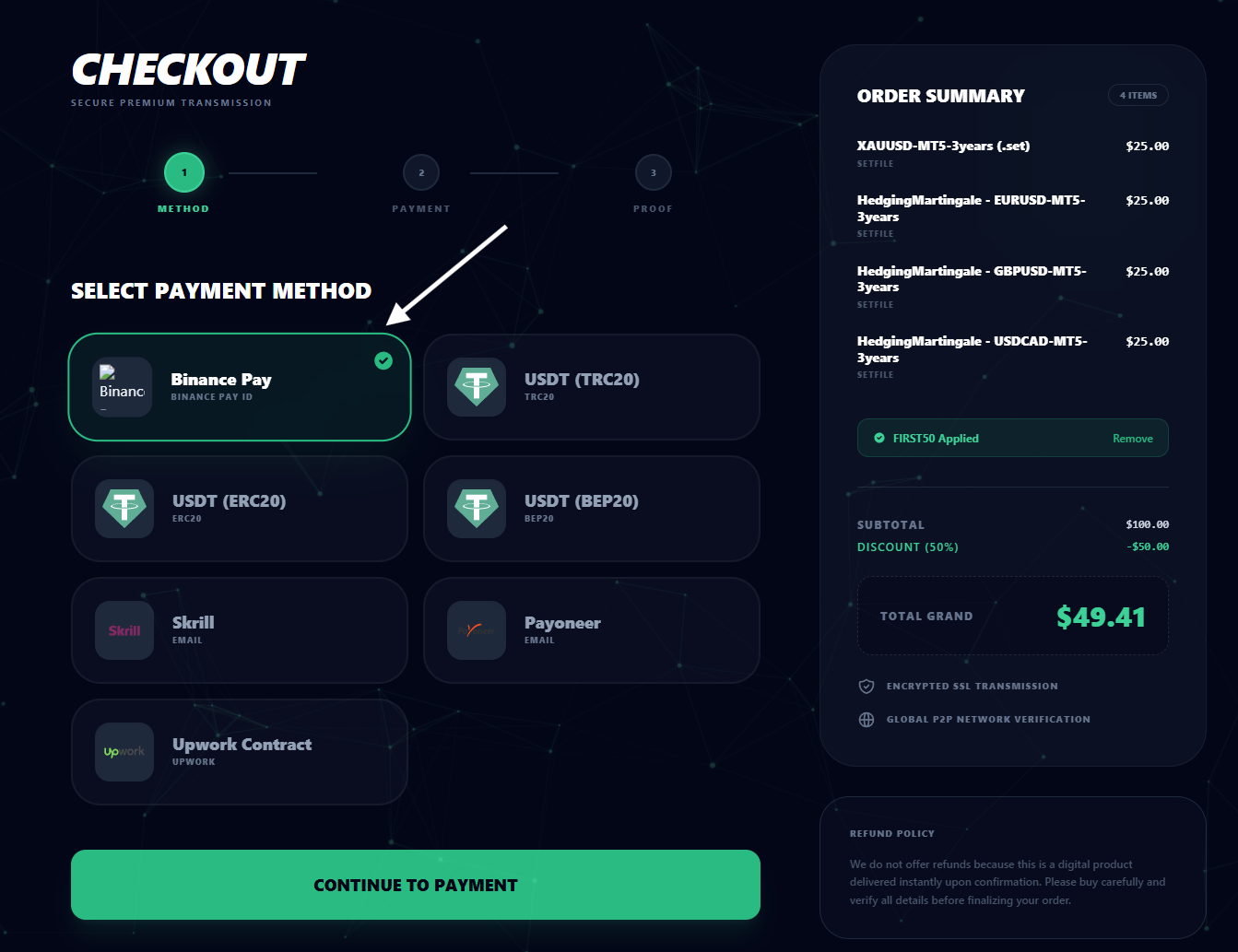
Proceed to checkout and select Binance Pay as your payment method.
Step 4: Scan and Complete the Payment
A unique QR code will be generated automatically.
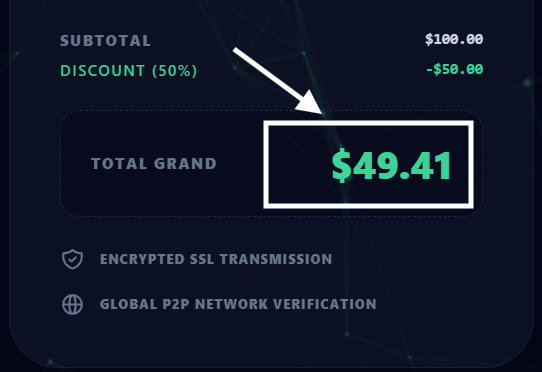
Open your Binance app, scan the code, and send the exact amount displayed on the screen. Sending the precise amount is important because the system uses it to verify your transaction automatically.
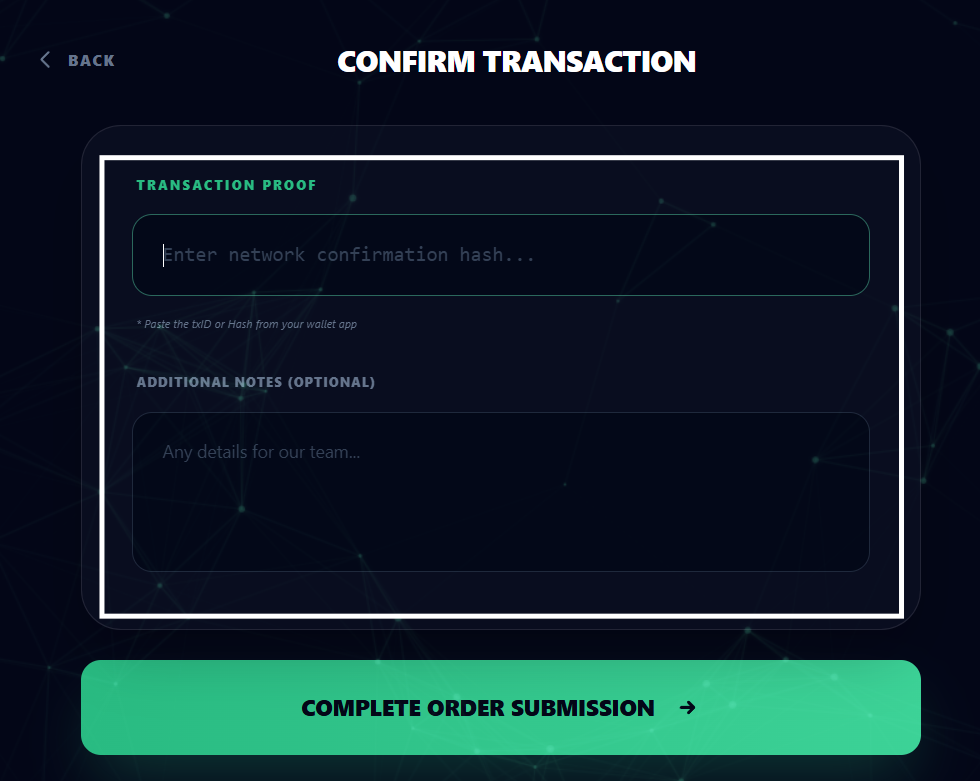
Step 5: Confirm the Transaction
After sending payment, click "I Have Transferred", enter your transaction ID, and submit the confirmation.
Once our system verifies your payment, it instantly unlocks your purchased files in the My Portfolio section. You can then download the files and import the settings directly into your MetaTrader platform.
Trade with More Confidence
Automated trading presents enough challenges on its own.
TradingBotLab helps traders make smarter decisions by combining Forex EAs with optimized .set files and transparent live performance tracking. Instead of relying on guesswork, traders can evaluate real results and approach the markets with greater confidence.
Explore the store, analyze live performance inside the Lab, and equip your trading robots with settings built to handle real market conditions—not just produce impressive backtests.